Guide
New tab page ideas that make Chrome worth opening
A useful new tab page should open as a working start page, not a blank pause between tasks. In Chrome, the right setup brings search, your usual sites, and a few calm tools together so the next step is obvious.
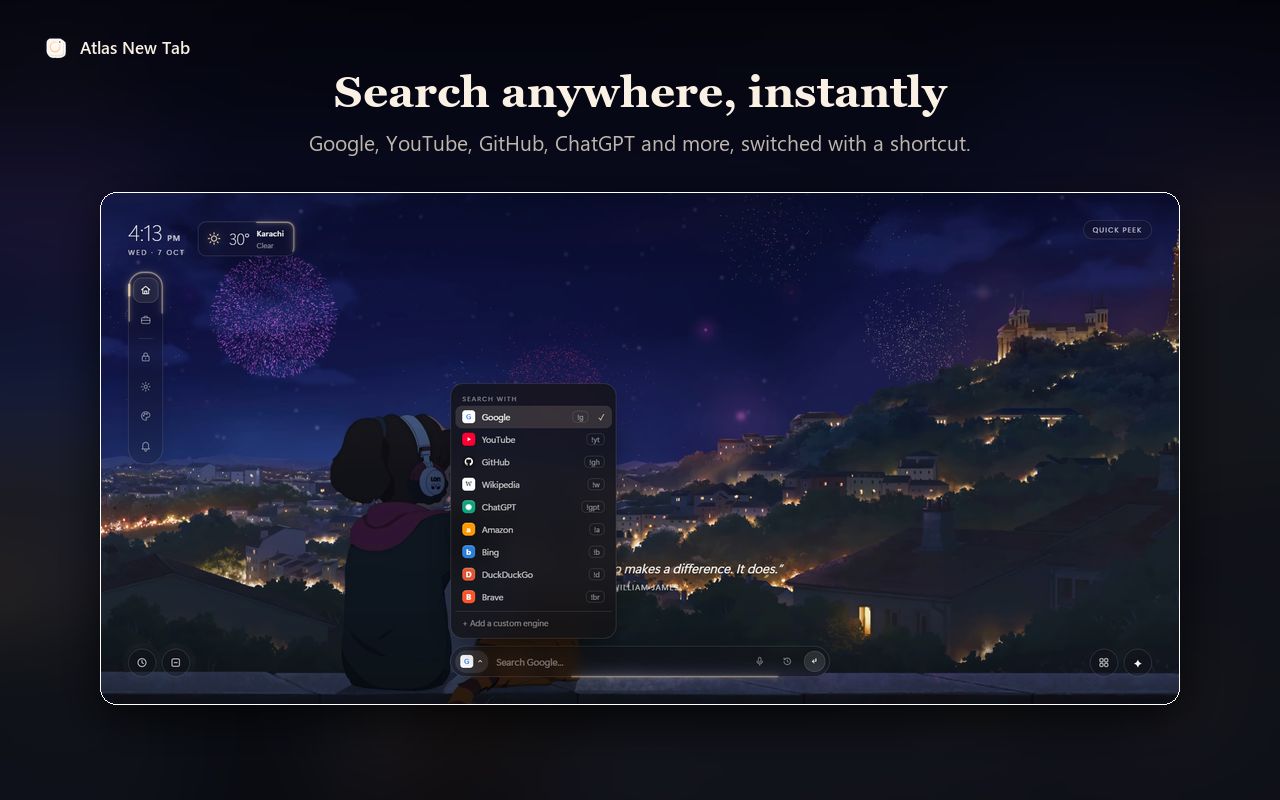
That matters more than the wallpaper. A tab you open dozens of times should reduce friction, not add another screen to manage. The best versions keep common actions close, leave visual space to think, and stay quick enough that opening a tab still feels instant.
This guide shows what a strong page should do, how to judge an extension before you install it, and how to tell the difference between a cosmetic refresh and a real daily tool.
What a new tab page should replace first
The first job is simple: remove the small delays between deciding what to do and starting it. A good tab should let you search, open a regular site, or return to a task without reaching for bookmarks, opening another menu, or scanning a crowded toolbar. When that path is short, the browser feels lighter.
The second job is to lower friction across different kinds of work. Some tabs begin with a search. Others begin with a note, a timer, a translation, or the same few sites you visit every day. Putting those actions in one place means you stop rebuilding your starting point over and over.
That is why a useful tab replaces more than the blank screen Chrome gives you. It can replace a bookmark folder, a sticky note, part of your toolbar, and some of the mental effort of remembering where to begin. The page becomes a small launchpad instead of empty space.
It also helps to think in terms of the next task, not every possible task. If the page tries to show everything, it becomes another dashboard you ignore. If it shows the few things you reach for most, it becomes part of your flow.
If you want to compare approaches before changing anything, this guide to Chrome new tab extensions can help you sort simple visual replacements from pages built for daily work.
Use this checklist before you install an extension
Speed
- It opens cleanly, with no obvious pause before the page is ready.
- Search is available straight away, without forcing extra clicks.
- Your main shortcuts are visible at a glance, not hidden in menus or side panels.
Usefulness
- The page helps with real tasks you repeat, such as search, notes, timers, reminders, or quick site access.
- The layout stays readable when you have only the essentials turned on.
- It feels like a starting point for work, not just a decorated background.
Control
- You can remove widgets you do not need, so the page does not become cluttered.
- Shortcuts are easy to edit, reorder, and replace as your routine changes.
- Visual settings can be tuned without making text hard to read.
Trust
- The extension explains what it changes and does not ask for permissions that seem unrelated to a tab page.
- Settings are easy to understand, so you know what will happen before you turn something on.
- If the extension adds productivity tools, those tools stay quiet until you need them.
Copy this list into a note before you browse the store. It makes weak options easier to spot.
Choose features that match how you browse every day
| If you often start with... | Choose features like... | Best for... | Skip if... |
|---|---|---|---|
| A search and a few regular sites | Fast search box, editable shortcuts, clean layout | People who want less friction without changing much | You need timers, notes, or blockers on the page |
| Ongoing work across several sites | Pinned shortcuts, recent pages, quick commands | Admin tasks, research, and daily routines | You prefer a very minimal screen |
| Focused work sessions | Timer, reminders, habits, site controls | Deep work, study, and task sprints | You only want a visual refresh |
| Capturing things before you forget them | Notes, to-do items, small widgets | Busy tabs, quick planning, light personal systems | You already keep another tool open all day |
| A calmer mood when the browser opens | Still or moving wallpaper, brightness and blur controls, readable overlays | People who value atmosphere as well as function | Visuals matter more than speed or text clarity |
The table shows how to match a browsing habit to the smallest feature set that will actually help; for more visual-first options, see this Chrome wallpaper extensions guide.
How Atlas turns a new tab into a working dashboard
A cosmetic tab changes the look of Chrome. A working dashboard changes what happens in the first few seconds after you open it. The practical test is simple: can you search, launch a site, check the time, and return to your next task without hunting around the browser? If the answer is yes, the tab is doing real work.
That is the gap a page with live wallpapers for Chrome's new tab needs to handle well. Motion can make a tab feel calmer, but only if the useful parts stay readable and close at hand. Atlas plays a short, silently looping video behind the new tab page, with shortcuts, a clock and a search bar on top. That setup matters because the background stays in the background while the core actions remain visible.
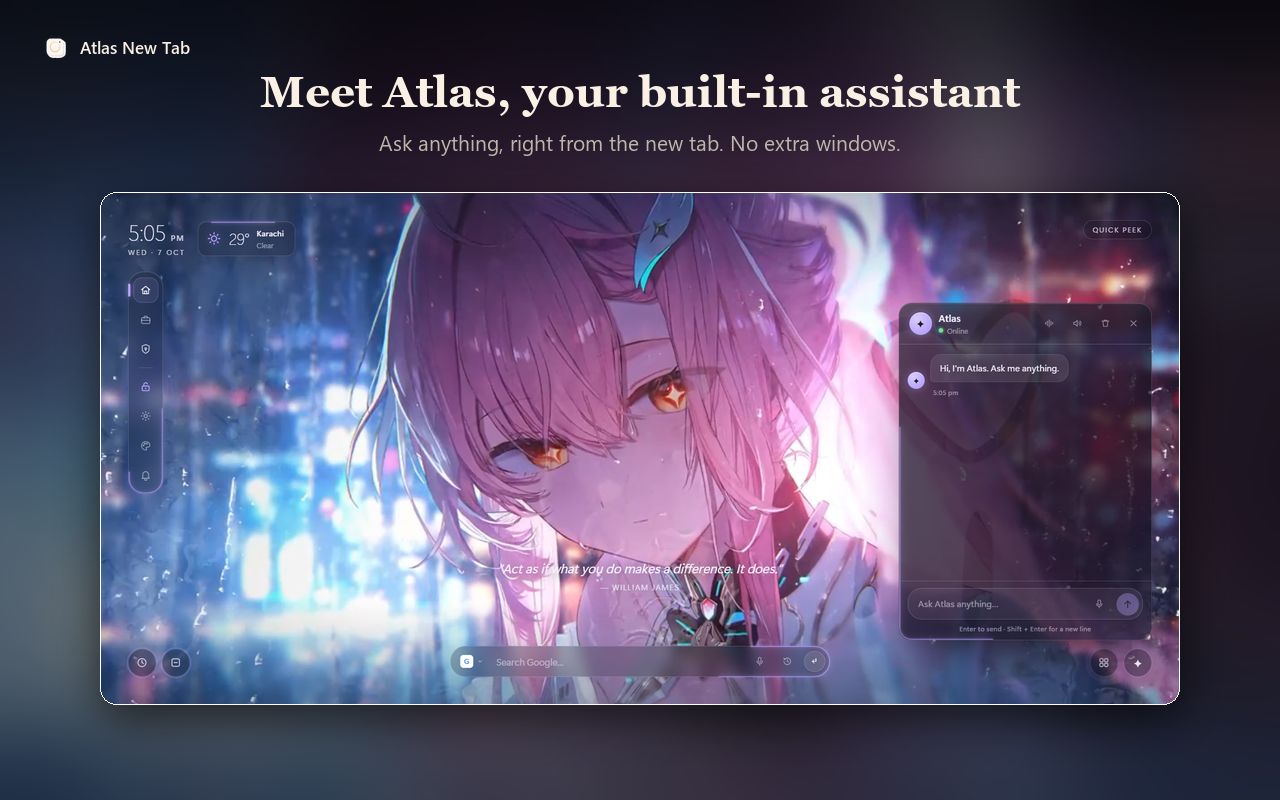
The difference becomes clearer over a normal day. A decorative page gives you a nice image, then sends you back to the same old mix of bookmarks, pinned tabs, and half-remembered to-dos. A productive page lets the tab itself carry part of that load.
When you test one, look for small signs of discipline. The text should stay easy to read. Shortcuts should be editable without effort. Useful tools should feel close, but not noisy. If the page can hold those tensions well, it becomes a dashboard instead of just a skin.
Why Atlas is the better fit when you want more than a background
Choose a simple visual extension if all you want is a nicer background and a short list of links.
The first reason is fit. Many people do not need another task app, but they do need a better starting point inside the browser they already use all day. That is where a page designed as a new tab finally worth opening makes sense. It keeps the opening action fast. It also leaves room for a few tools you would otherwise scatter across tabs, notes, and browser menus.
The second reason is range without forcing clutter. Atlas provides a free new tab extension for Chrome with live 4K wallpapers, a command center, a focus timer, reminders, habits, a site blocker and translation. It also offers online live wallpapers searchable from Pixabay Videos and WallpaperWaves, with filters including Nature, Space, Ocean, Cityscape and Abstract. Atlas offers 7 days of Pro free. That is a useful mix for people who want one calm page for quick launches and light planning.
Frequently asked questions
How do I make my Chrome new tab go to the homepage?
Chrome does not let you make a fresh tab open your homepage with a built-in setting. The homepage setting controls the Home button, and startup settings control what opens when Chrome launches, but a new tab stays separate unless you use an extension that replaces it.
Can I set a custom new tab URL in Chrome?
No, standard Chrome does not let you set a custom URL for a fresh tab by itself. If you want a specific site or dashboard to appear there, you usually need an extension, because startup pages and the Home button are different from what opens in a new tab.
What are new tab page cards?
New tab page cards are clickable blocks that show sites, shortcuts, or small bits of information on the tab itself. Some are simple tiles for favorite pages, while others act more like widgets and can show tasks, notes, or other quick actions without leaving the page.
How do I change the new tab page on Microsoft Edge?
To change the new tab page on Microsoft Edge, open a new tab, select the page settings menu, and choose the layout and content you want. If you want to replace the page more fully, you can use an extension from Edge Add-ons or a compatible Chrome extension if Edge allows it.