Guide
Best Chrome wallpaper extensions
A wallpaper is the first thing you see on every new tab. The right extension gives you sharp pictures that load fast, plenty to choose from, and the controls to keep your shortcuts readable on top. Here's how these extensions work and what separates a good one from a slow one.
How Chrome wallpaper extensions work
A wallpaper extension replaces Chrome's new tab page with its own page and draws a picture behind it. The pictures come from one of three places: files bundled with the extension, an online collection the extension fetches from, or images you upload yourself.
If all you want is one still photo, Chrome's own new tab can do that: open a new tab, choose Customize Chrome and pick a background. Extensions are worth it when you want more: a larger library, higher resolutions, video wallpapers, scheduling, or a different layout on top.
What makes a good wallpaper extension
- Resolution that matches your screen. A 1920×1080 image looks soft on a 4K monitor. Look for a 4K option if your screen is large, and HD if it isn't; there's no benefit to downloading more pixels than you can see.
- Fast loading. The new tab should feel instant. Good extensions show a small preview first, cache what you use, and avoid fetching the same large file again and again.
- Readability controls. Busy pictures make text hard to read. Brightness, blur and dim sliders fix that without changing the wallpaper.
- Variety and search. Categories are a good start; a search box lets you find exactly the scene you want.
- Control over changes. Some people want a new picture every tab; others want one that stays put. Check which the extension does, and whether you can change it.
- Clear sources. Know where pictures come from, whether they're filtered for safe content, and whether the creators get credit.
Wallpaper styles you can choose in Atlas
The Atlas online library has a filter for each style below, plus All, 4K, Live and your Favourites. Every style has still images; the ones marked below also include live video wallpapers. You can type your own search too, such as "rain" or "lighthouse".
| Style | Still (HD and 4K) | Live video |
|---|---|---|
| Nature | Yes | Yes |
| Mountains | Yes | Yes |
| Forest | Yes | Yes |
| Ocean | Yes | Yes |
| Sunset | Yes | Yes |
| Snow | Yes | Yes |
| Space | Yes | Yes |
| Cityscape | Yes | Yes |
| Abstract | Yes | Yes |
| Cyberpunk | Yes | Yes |
| Cars | Yes | Yes |
| Anime | Yes | Search only |
| Minimal | Yes | Search only |
| Dark | Yes | Search only |
| Fantasy | Yes | Search only |
| Architecture | Yes | Search only |
| Games | Yes | Search only |
"Search only" means the style's filter shows still images, but you can still search the live library for it by name. What appears depends on what the sources have at the time.
Atlas's wallpaper features
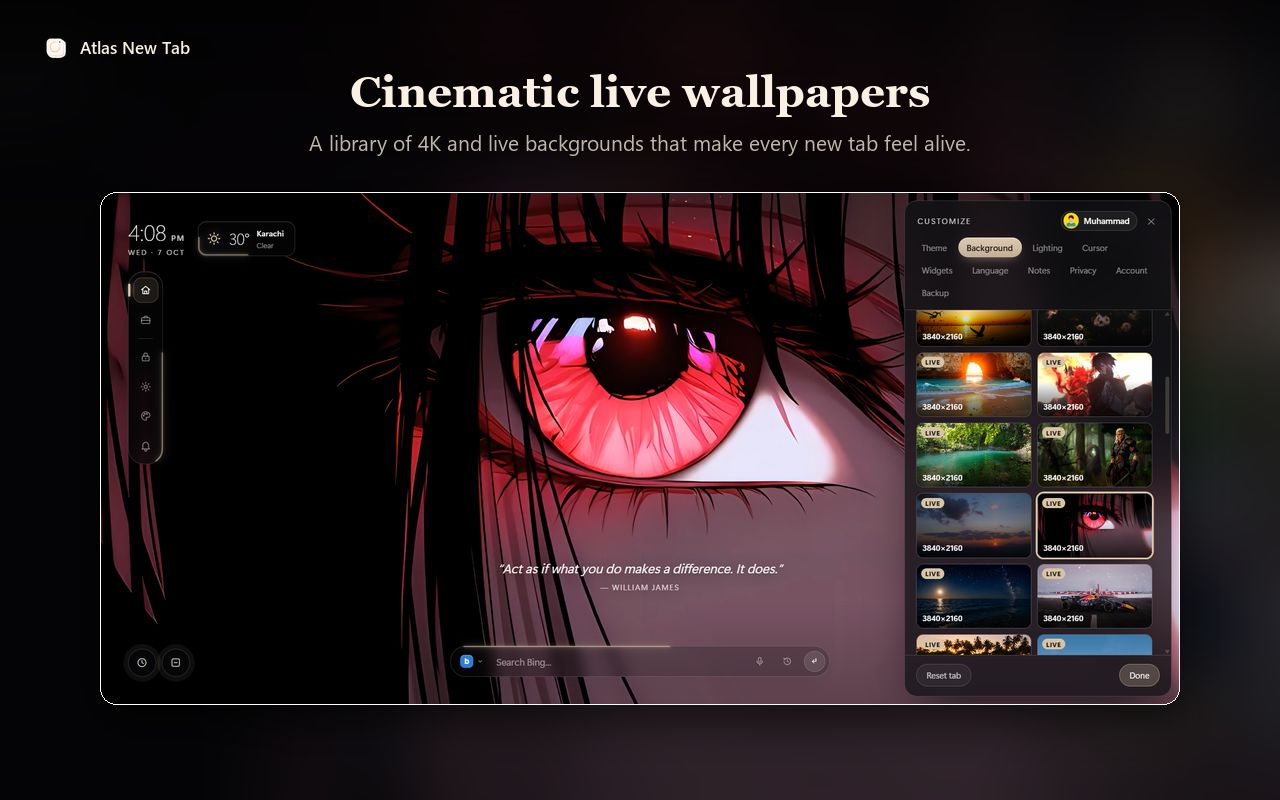
Five kinds of background
- Built-in: Atlas's own live wallpapers.
- Online: the searchable library of HD and 4K stills from Wallhaven and live wallpapers from Pixabay Videos and WallpaperWaves.
- My file: any image or video from your computer.
- Colour or Gradient: a plain background, with your choice of colours and gradient angle.
Settings that keep it readable
Brightness, blur and dim apply to any wallpaper, and playback speed applies to video. The eight theme presets (Sand, Ocean, Rose, Mint, Violet, Ember, Lime and Mono) change the accent colour and glass tint to suit the picture.
Favourites and schedules
Star a wallpaper to keep it in Favourites; with an account, favourites follow you to other computers. A schedule switches wallpapers at the times you set. You can also step through the wallpapers with the "Next wallpaper" and "Previous wallpaper" commands in the Command Center (Ctrl + Space).
How it stays quick
Thumbnails in the library load lazily, and a new wallpaper fades in only once it's ready, so you never see a half-drawn picture. Live wallpapers have extra tricks to keep loading fast, covered in our page on how Atlas handles live wallpapers.
What's free: every still wallpaper in the library, colours, gradients and your own uploads. Live video wallpapers are part of Atlas Pro (the default built-in one is free), and new accounts can try Pro free first. See pricing for details.
How to set a wallpaper in Atlas
- Install Atlas from the Chrome Web Store and open a new tab.
- Open Customize and go to the Background tab.
- Choose Online, then pick a style such as Nature or 4K, or type a search.
- Click a wallpaper to use it. Click the star to keep it in Favourites.
- Adjust Brightness, Blur and Dim until your shortcuts and clock are easy to read.
- To use your own picture, choose My file and select an image.
Wallpapers are only part of a new tab. If you're also comparing shortcuts, search and productivity tools, read our guide to choosing a Chrome new tab extension.
Frequently asked questions
Can I use my own photo as the Chrome new tab background?
Yes. In Atlas, open Customize › Background, choose My file and pick an image or a video from your computer. It's kept in your browser on that computer.
Are the wallpapers in Atlas free?
The 4K and HD still wallpapers in the online library are free for everyone, as are colours, gradients and your own uploads. Live video wallpapers are part of Atlas Pro, apart from the default built-in one.
Does the wallpaper change by itself?
Only if you ask it to. Atlas keeps the wallpaper you pick. With a schedule (Customize › Background › Schedule) it switches to a chosen wallpaper at set times, for example a bright one in the morning and a dark one at night.
Where do the online wallpapers come from?
Still images come from Wallhaven, filtered to safe-for-work pictures of at least 1920×1080. Live wallpapers come from Pixabay Videos and WallpaperWaves. They're shown from those sites' own servers, and each one keeps its credit.
Will a wallpaper make my text hard to read?
It can, which is why Atlas has brightness, blur and dim sliders for the background. Dim or blur a busy picture until the clock and shortcuts stand out.