Feature
Live wallpapers for Chrome's new tab
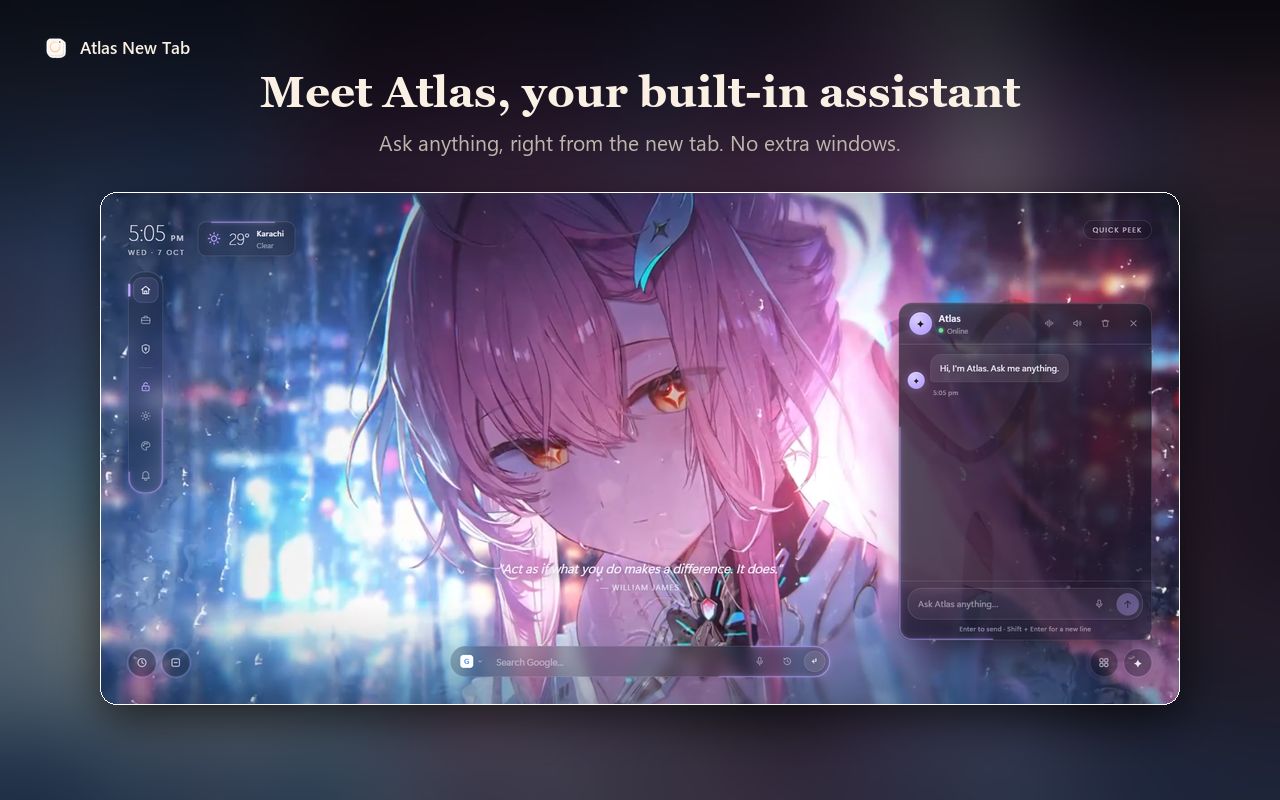
Atlas can play a looping video behind your new tab: drifting clouds, rain on a city at night, a slow ocean. Here's what live wallpapers are, what Atlas supports today, and what they cost in memory and battery, so you can decide when they're worth it.
What live wallpapers are
A live wallpaper is a short video that loops silently behind the new tab page. Some people call them animated or dynamic backgrounds. In Atlas, every live wallpaper is a real video file, played by Chrome's built-in video player, with your shortcuts, clock and search bar on top.
Static vs animated backgrounds
| Still image | Live video | |
|---|---|---|
| Look | Sharp, calm, nothing moves | Motion and depth; the page feels alive |
| Download size | Usually a few megabytes at most | Much larger; a 4K clip can run to 100 MB or more |
| Work while on screen | Drawn once | Decoded frame by frame, using the graphics chip |
| Battery | Lowest | Higher while the tab is visible |
| Best for | Laptops on battery, focus, older computers | Desktops, plugged-in laptops, a page you enjoy opening |
What Atlas supports today
- Built-in live wallpapers: a set of looping clips chosen for Atlas. The default one is free for everyone.
- An online live library: search videos from Pixabay Videos and WallpaperWaves, with filters such as Nature, Space, Ocean, Cityscape and Abstract. Many are 4K. See the wallpaper guide for every style.
- Your own video: upload a clip from your computer under My file.
- Playback speed from 25% to 200%, for a slower, calmer loop or a livelier one.
- Brightness, blur and dim, so the clock and shortcuts stay readable over a busy scene.
- Schedules: switch to a chosen wallpaper at set times of day, for example a sunrise clip in the morning and a night city after dark.
- Favourites and Next / Previous wallpaper commands in the Command Center.



Performance: memory, battery and responsiveness
Playing video takes work, and a new tab page is opened a lot. Atlas is built to keep that cost down:
- Paused when hidden. The video stops whenever its tab isn't on screen, so ten open new tabs don't mean ten videos playing.
- Background tabs wait. A new tab opened behind others doesn't start downloading an online wallpaper until you switch to it.
- Fast start, full quality later. An online live wallpaper shows its thumbnail at once, then a lighter 720p or 1080p clip within a second or two. The full file downloads behind it and takes over with a crossfade.
- The right size for your screen. On screens narrower than about 2K, Atlas keeps the full-HD copy rather than 4K, which looks the same there and is several times less to download and decode.
- Cached on disk. The last three live wallpapers are kept on your computer, so they play straight from disk next time instead of downloading again.
- No blur over moving video. Glass blur effects are redrawn on every frame of a video, so while a live wallpaper plays, panels switch to a frosted tint instead and the video keeps its frame rate.
Good to know: Atlas doesn't switch to a still wallpaper on its own when your laptop is on battery or in power-saving mode, and the reduced-motion setting on your computer calms the interface but doesn't stop the video. If battery life matters, pick a still image, a colour or a gradient under Customize › Background. A memory or battery figure depends on your computer, the clip and its resolution, so try one and see how it feels.
How to set up a live wallpaper
- Install Atlas from the Chrome Web Store and open a new tab.
- Open Customize and go to Background.
- Choose Built-in and pick a clip, or choose Online and select the Live filter.
- Set Playback speed, then use Dim or Blur if the motion makes text harder to read.
- Optional: open Schedule to change wallpapers at set times.
For the bigger picture, including shortcuts, search and focus tools, see our guide to Chrome new tab extensions.
Frequently asked questions
What is a live wallpaper in Chrome?
A short looping video that plays, muted, behind your new tab page. Chrome itself only supports still backgrounds on its new tab, so live wallpapers come from extensions such as Atlas.
Do live wallpapers drain the battery?
They use more power than a still image, because the video has to be decoded for every frame while the tab is on screen. Atlas pauses the video whenever the tab is hidden, but on a laptop running on battery a still wallpaper or a plain colour is the lighter choice.
Can I use my own video as a wallpaper?
Yes. In Customize › Background, choose My file and pick a video from your computer. MP4 is the safest choice; any format Chrome can play will work. The file stays in your browser on that computer.
Are live wallpapers free in Atlas?
The default built-in live wallpaper is free. The other built-in and online live wallpapers are part of Atlas Pro, and new accounts can try Pro free before paying. Still wallpapers, colours, gradients and your own uploads are free.
Do live wallpapers work offline?
Your own uploaded video does. Built-in and online live wallpapers are streamed the first time; Atlas then keeps the last few you used on disk, so they don't need downloading again.