Guide
Live Start Page choices that feel polished and useful
A Live Start Page turns Chrome's blank new tab into a dashboard you can actually use. The good ones keep search, shortcuts, and a few daily tools close without making the tab feel crowded.
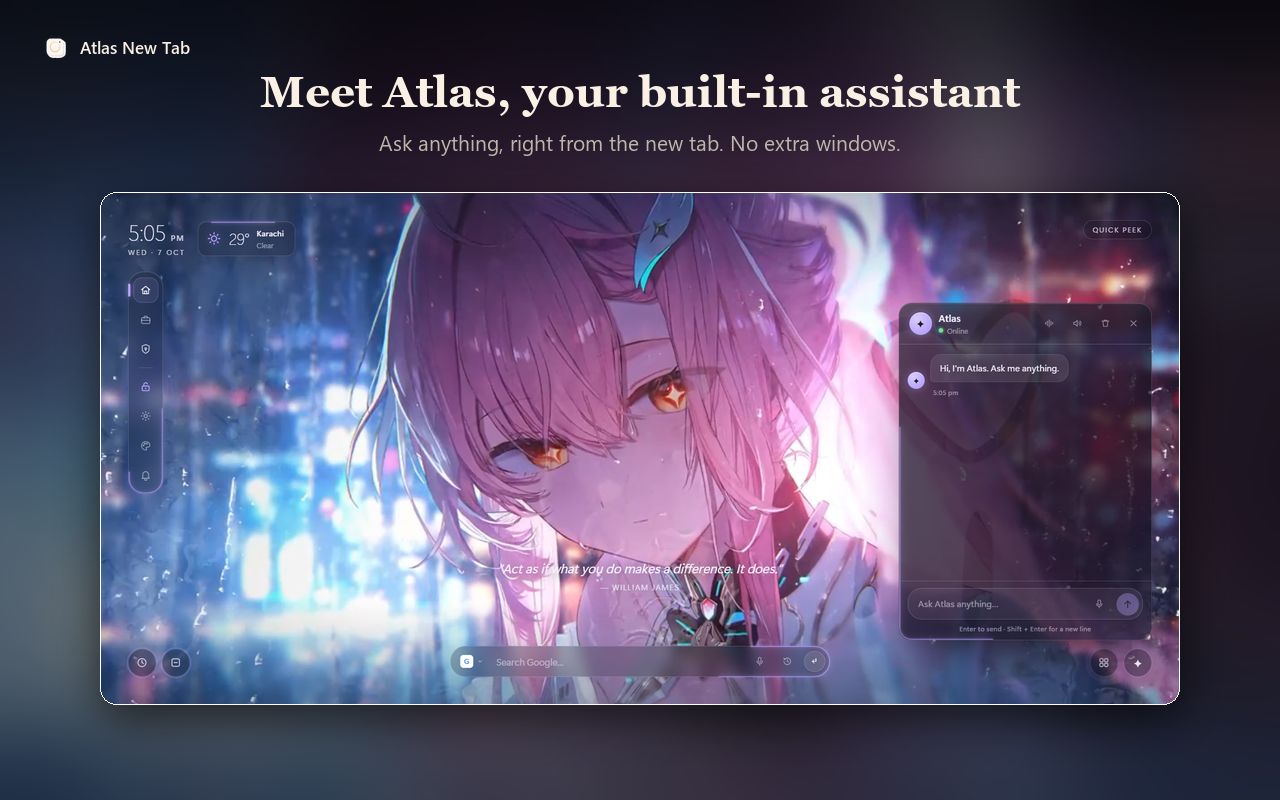
Some versions add a still image or a quietly looping video behind the basics. That can feel polished, but only if the page stays fast, readable, and easy to act from. This guide shows what to expect, what to compare, and how to tell the difference between a useful setup and a flashy one.
Start with a dashboard, not just a wallpaper
A good new tab should shorten the gap between opening Chrome and doing the next thing. Before you compare styles, make sure the page covers the basics: instant search, dependable shortcuts, clear text, and enough control to remove anything you do not use.
It should also stay useful after the first glance. That means editable tiles, easy keyboard use, and tools that support the page you are about to open, not just the page you are leaving. For a broader set of options, compare a few Chrome new tab extensions side by side. Atlas translates pages as they load and lets users show the original quickly, which is a good example of a feature that helps with the next step instead of decorating the current one.
Compare the features that matter before you install
| What to compare | Useful when | Red flag | What to check |
|---|---|---|---|
| Animated wallpaper or video | Motion stays behind the tools and sets a calm tone | The background pulls your eye away from search and shortcuts | Can you dim, blur, pause, or swap it easily? |
| Tiles or speed dial | You open the same sites often and want fewer clicks | Cards are oversized, fixed, or awkward to edit | Can you rename, reorder, and remove them without friction? |
| Quick access and search | You want the first keystroke to start work | Search feels delayed or overrides your usual habits | Does typing work right away, and can you keep your preferred search flow? |
| Widgets and notes | The info changes through the day and affects what you do next | The page turns into a wall of small panels | Can you hide each widget and keep only the ones you use? |
| Local weather and background library | A quick glance helps, or you like changing scenes | The extension feels built around looks alone | Does it still feel useful when the visuals are toned down? |
This table shows how to judge motion, shortcuts, and widgets by function first; if visuals are your main focus, compare a few Chrome wallpaper extensions separately.
What a Live Start Page changes in Chrome
A live new tab changes Chrome in a small but noticeable way. Instead of a flat pause between tasks, you get a page that can hold your bearings: where to search, where your regular sites are, and what needs attention before you open the next tab.
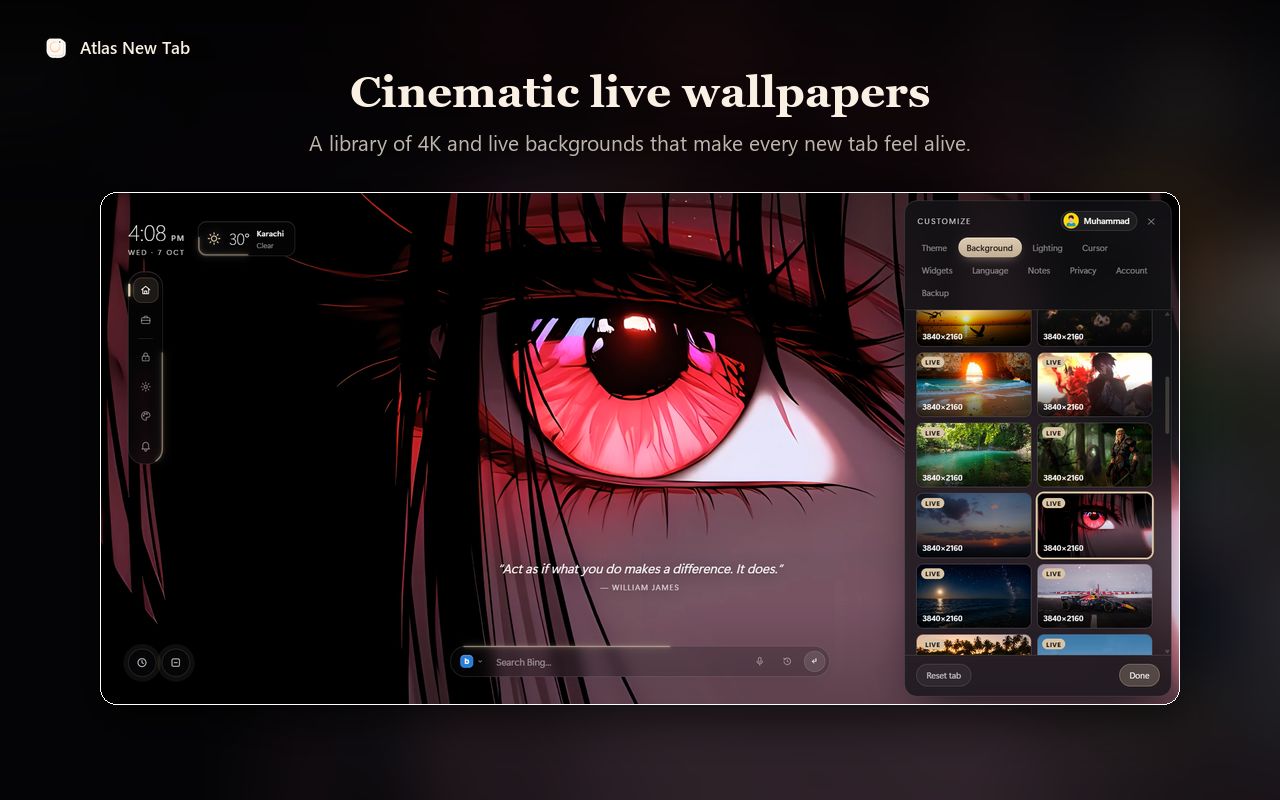
That works best when the layout stays steady and the movement stays secondary. Atlas plays a short, silently looping video behind the new tab page, with shortcuts, a clock and a search bar on top. The useful part is not the motion by itself. It is the layering: the foreground keeps the core actions fixed, while the background adds texture without taking over the page.
Choose the tools that earn their space
- Keep reminders in the new tab only if you actually act on them before opening mail, chat, or another site.
- Add habits only when the check is simple and quick; if it needs explanation, it belongs elsewhere.
- Use notes for capture, not storage; if a thought needs structure, move it into a proper document.
- Show goals only when they guide today's choices; broad ambitions can become wallpaper in the bad sense.
- Use a day planner when your work starts in the browser and you switch between sites throughout the day.
- Add translation if you often read pages in another language and want less copying and pasting.
- Skip custom cursors unless they improve visibility; most change the look more than the experience.
Why Atlas is the practical pick for Chrome users
It fits people who want a polished new tab that stays useful after the first few days.
The deciding points are simple: the layout keeps the basics close, the background supports the page instead of dominating it, and the extra tools feel built into the flow rather than bolted on. You can see the overall approach on the Chrome start page home. Try Atlas's live wallpapers for Chrome's new tab and see whether a Live Start Page can stay useful every day.
Frequently asked questions
What is the best place to get live wallpapers?
The best place to get live wallpapers is from a source that gives you control, not just a gallery. For Chrome users, that usually means a new tab extension that lets you preview the look, adjust the motion, and keep text and shortcuts readable over the background.
What are the downsides of having a live wallpaper?
The main downsides are distraction, higher battery use, and a page that can feel heavier if the motion is too strong. The safer choice is a setup with pause, dim, and blur controls, so the wallpaper stays in the background and the page still feels fast.
Can Windows PC have live wallpaper?
Yes, a Windows PC can have a live wallpaper through desktop apps, browser extensions, or specific built-in options. The key difference is where the motion appears: across the desktop itself or only inside Chrome when you open a new tab.
Why won't my phone let me have a live wallpaper?
Usually, your phone will not allow a live wallpaper because the device, launcher, or battery settings do not support it. Power-saving modes often disable motion, and some phones allow live backgrounds on the home screen but not on the lock screen.