Guide
Best Chrome new tab extensions
You open a new tab dozens of times a day. A good new tab extension turns that blank page into something useful: your sites one click away, a faster way to search, and a background you like looking at. Here's what these extensions do, the main kinds, and how to choose.
What a Chrome new tab extension does
Chrome allows an extension to replace the page you see when you open a new tab. Instead of the default Google page, you get whatever the extension draws: shortcuts, a search bar, a clock, widgets, a wallpaper, or all of them. The extension runs that page locally, each time a tab opens.
Two rules are worth knowing before you install one. Only one extension can own the new tab page at a time, and Chrome may ask you to confirm the change the first time. And because the page loads on every new tab, how light it is matters more than for most extensions.
What to look for
- Speed. The page should appear the moment the tab opens. Heavy pages and slow network calls get old quickly.
- Shortcuts that fit how you work. A fixed grid of eight tiles suits some people; others want groups, folders or separate sets for work and home.
- Search. Check which engine it uses and whether you can change it. Some extensions switch you to a different search engine, so read the listing.
- Customization. Colours, layout, fonts and the background. See our guide to Chrome wallpaper extensions if the background is what you care about most.
- Widgets you will actually use. Weather, to-dos, a focus timer and notes are handy; ten widgets you never open just add clutter.
- Permissions and privacy. The Chrome Web Store lists what an extension can access. Read the privacy policy to see what leaves your computer.
- The price model. Free, free with a paid plan, or ad-supported. Know which one before you set everything up.
The main kinds of new tab extensions
Most new tab extensions lean towards one of a few styles. None is better in general; it depends on what you want from the page.
| Kind | Good for | Trade-offs |
|---|---|---|
| Minimal | A clean page with a clock, a search bar and little else | Few shortcuts or tools; you may still need a bookmarks bar |
| Speed dial / bookmarks | Getting to the same sites fast, often in groups | Can turn into a wall of tiles if you save everything |
| Wallpaper-first | A new picture or scene behind a simple page | Large images or video use more data, memory and battery |
| Productivity dashboard | To-dos, focus timers, notes and goals where you can't miss them | More to set up, and more on screen every time |
| All-in-one | Shortcuts, tools and wallpapers in one place, with most of it switchable | Takes a few minutes to tune; needs good defaults to stay calm |
Where Atlas fits
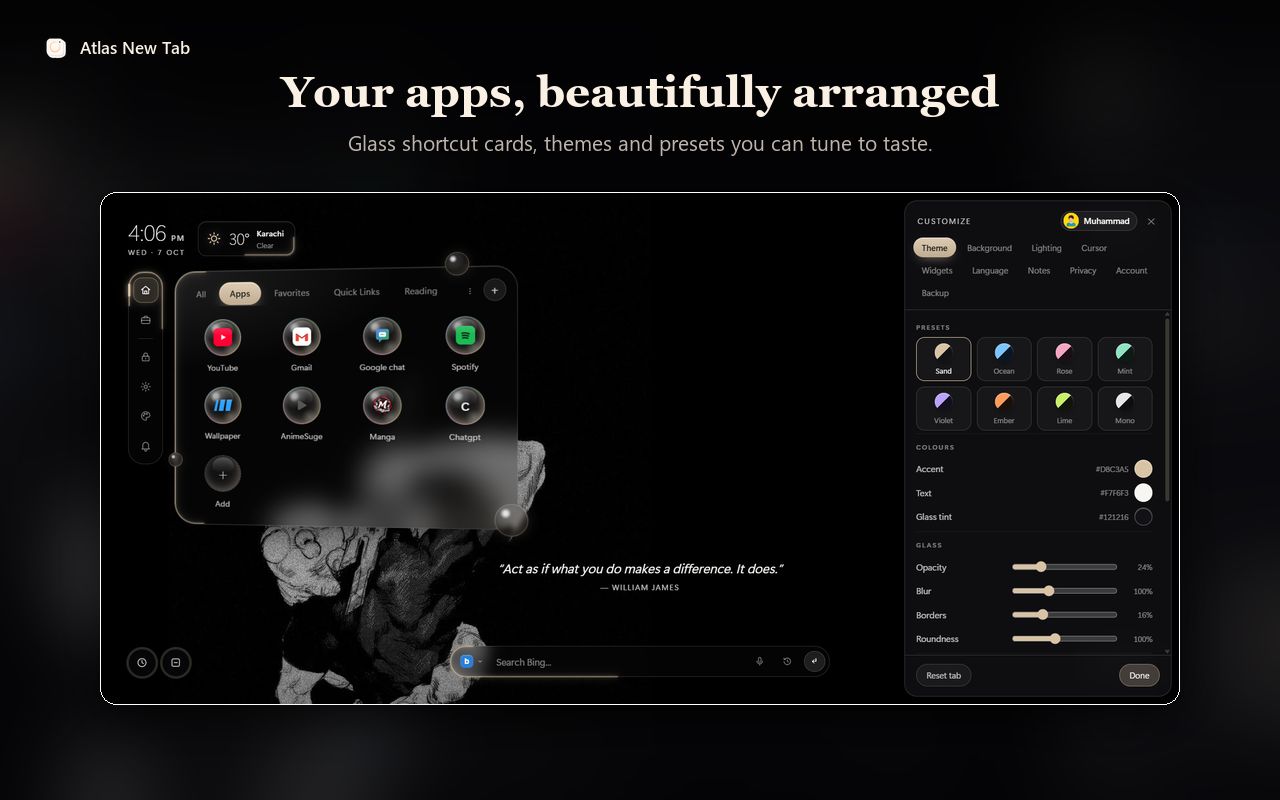
Atlas is an all-in-one new tab built to stay calm. It starts with a clock, a search bar and your shortcuts over a wallpaper, and everything else is a panel or a keystroke away. Here is what it includes today.
| Feature | What it does | Plan |
|---|---|---|
| Shortcut cards and workspaces | Sites in glass cards, sorted into tabs such as Apps, Favorites and Reading, with separate workspaces | Free |
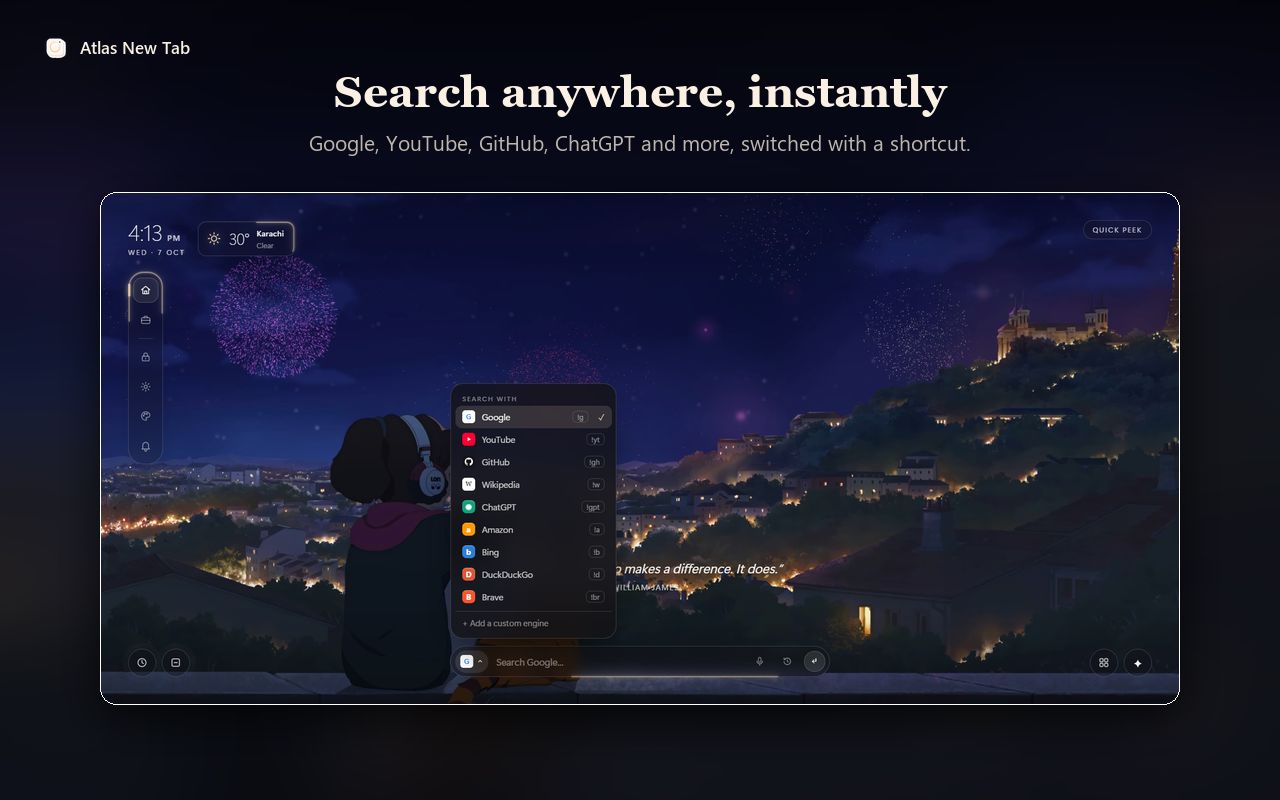
| Search | Uses your browser's search engine, with shortcuts such as !yt, !gh and !w for YouTube, GitHub and Wikipedia | Free |
| Command Center | Ctrl + Space finds any setting or tool by name | Free |
| Zen and Minimal modes | Z shows only a clock; M hides everything but search | Free |
| Widgets | Weather, a daily quote, now playing and translation | Free |
| Focus tools | Focus timer, reminders, notes and goals, and habits (three on the free plan) | Free |
| Themes and backgrounds | Eight theme presets, glass and colour settings, 4K still wallpapers, your own image, a colour or a gradient | Free |
| Live wallpapers | Built-in and online video backgrounds (the default built-in one is free) | Pro |
| Site blocker, private space, sync and backup | Block distracting sites, keep an encrypted private space, and keep settings in step across computers | Pro |
Pro also adds an AI day planner with Google Calendar, 30-day screen-time stats and more saved tab sessions. Current prices are on the pricing section of the home page.
What to weigh up
- Atlas asks for access to the sites you visit. That's because custom cursors, page translation and the now-playing widget work on other pages, not only on the new tab. The privacy policy lists what is stored and what leaves your computer.
- Live video wallpapers look great but use more power than a still image. Our page on live wallpapers and performance explains the trade-off and how Atlas keeps it small.
- An account is only needed for Pro, sync and backup. Everything else works signed out.
How to install and set up Atlas
- Open the Atlas page on the Chrome Web Store and choose Add to Chrome.
- Open a new tab. If Chrome asks whether to keep the new page, choose to keep it.
- Open Customize and pick a theme preset under Theme. The accent colour, text colour and glass tint can all be changed.
- Under Background, choose a built-in wallpaper, browse the online library, or upload your own picture.
- Add your sites to the shortcut cards with the + button, and group them into tabs.
- Press Ctrl + Space any time to find a setting or tool by name.
Frequently asked questions
Can I use more than one new tab extension at once?
No. Chrome lets only one extension control the new tab page at a time, usually the one installed or turned on most recently. To switch, turn the others off in chrome://extensions.
Do new tab extensions slow Chrome down?
They can, because the page runs every time you open a tab. A plain page with shortcuts costs very little; video wallpapers, many widgets and network calls cost more. If tabs feel slow to open, try a still wallpaper or turn off widgets you don't use.
How do I get Chrome's default new tab back?
Open chrome://extensions and switch the new tab extension off, or remove it. Chrome goes back to its own new tab page straight away.
Does Atlas work in Edge, Brave and other browsers?
Atlas installs from the Chrome Web Store, so it works in Chromium browsers that accept Chrome Web Store extensions, such as Chrome, Edge, Brave, Opera and Vivaldi.
Is Atlas free?
Yes. Shortcuts, workspaces, search, the Command Center, widgets, focus tools, themes and 4K still wallpapers are free, with no ads. Atlas Pro adds every live wallpaper, sync and backup, the site blocker, the private space and a few other tools, and new accounts can try Pro free first.